App · Events
Run your events
on your CRM.
worksby.design's Events app puts your events on your own website and runs them from HubSpot — every registration is a CRM record, linked to the contact and the event.
Available through selected HubSpot partners. Ask your HubSpot partner about Events — they install it on your portal, set it up with you and support it.
01 The walk-through
One workshop, sign-up to record.
A visitor registers on the company's own site and has her ticket at once, the workshop fills and the next sign-up joins the waitlist, and in HubSpot the organiser sees the seats, the waitlist and every registration.
Recorded on a HubSpot demo portal, with invented people and companies. The check-in at the door is shown as a picture of the real scanner. English captions — switch them on in the player.
02 What it does
Three things, all in HubSpot.
01 — Register
A ticket the moment they register.
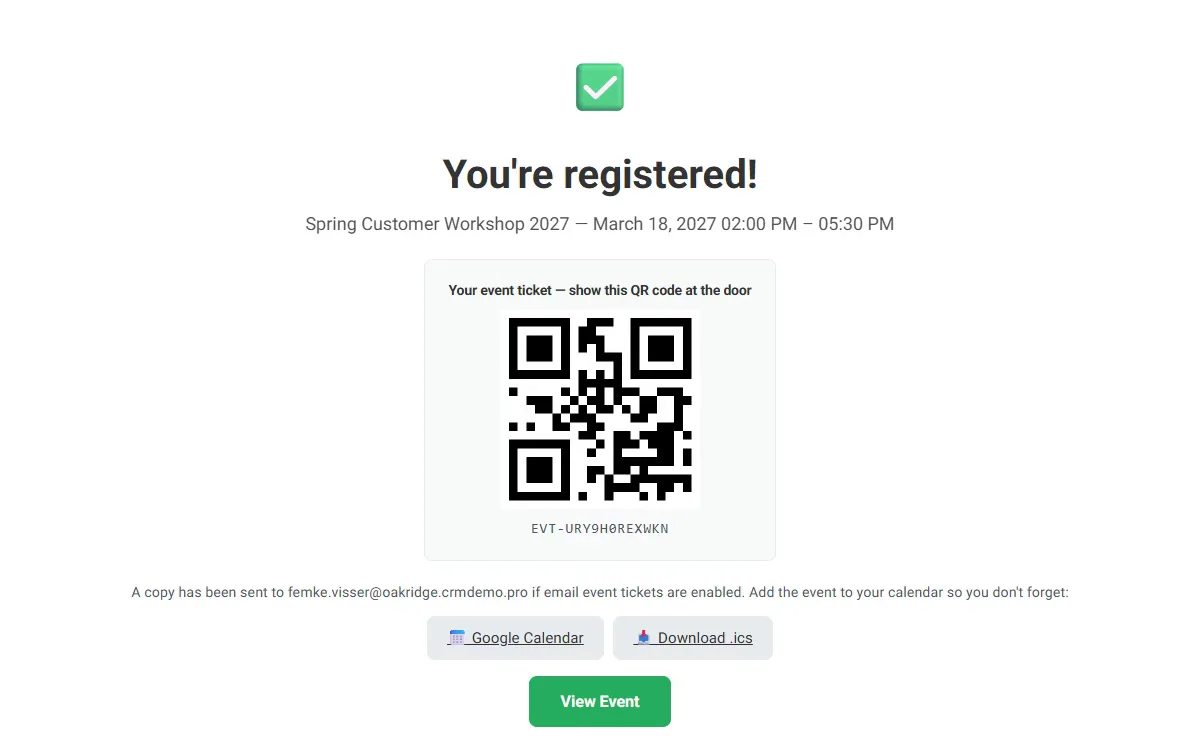
Visitors register on your own website with a short form and see their ticket straight away — a QR code with their own ticket number, also sent by email, with a link to add the event to their calendar.
02 — Waitlist
A waitlist that fills itself.
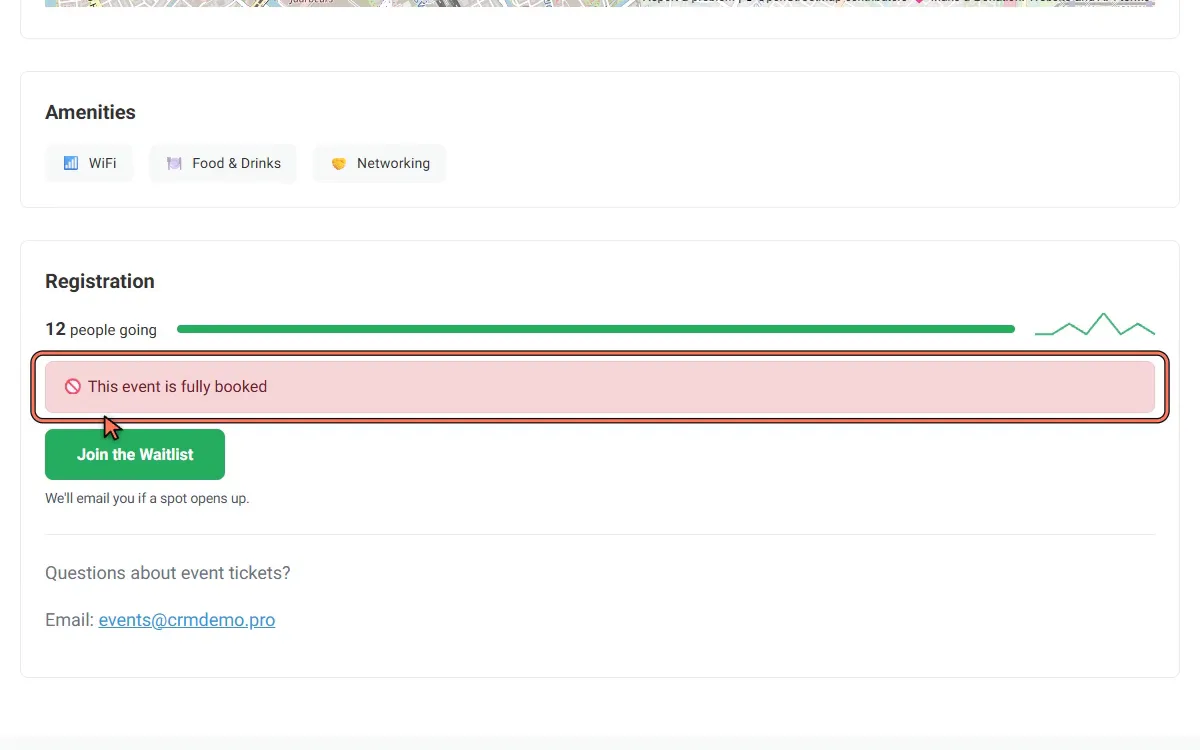
When an event is full, its page says so and the button becomes join the waitlist. When a seat frees up, the person who has waited longest moves up and is sent a ticket.
03 — Organise
Every event on one page in HubSpot.
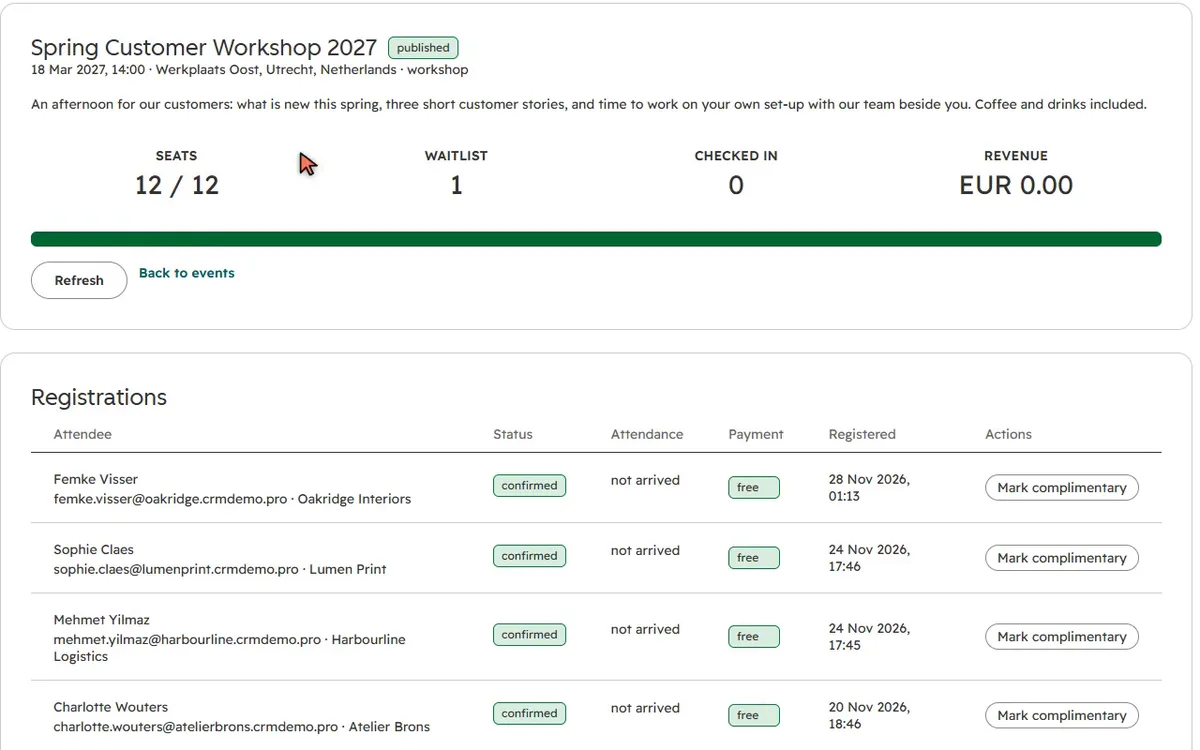
The organiser has a page in HubSpot with every event, its seats, its waitlist and its check-ins. Each registration is a CRM record linked to the contact — as attendee and as buyer — and to the event, so lists, workflows and reports work on it.
03 Works with
On its own, or with three other apps.
Events runs on its own. The links to Commerce and Hospitality are switched off until they are wanted.
04 Where your data is
Events and registrations stay in your portal.
The Events app keeps its records in your HubSpot portal. The app itself runs on worksby.design's service, and a few things pass through it.
In your portal
- Events and registrations, as two custom objects in your own portal
- Each registration linked to the attendee's contact and to the event
- Staff sign in to the door scanner with their own member login on your website — no separate staff accounts
Outside your portal
- The app's pages and calls run through worksby.design's service at
api.worksby.design, which holds your portal's access token, encrypted - The QR image on a ticket is drawn by that service from the ticket's code
- Ticket emails, where switched on, go out through your portal's own HubSpot email when it has the right add-on, and otherwise through worksby.design's mail relay
- With the Hospitality link switched on, a check-in waits there until it is delivered as a visit; delivered rows are deleted after 30 days
- Paid tickets are paid on the payment provider's own page, through Commerce — Events holds no payment keys
05 Who does what
Three parts, three owners.
worksby.design
Builds the app, publishes it and keeps it working as HubSpot's platform versions move.
Your HubSpot partner
Installs it on your portal, sets it up, adapts it where your process needs it, trains your team and supports you.
You
Own the portal and every record in it. The app's records stay in your CRM.
Ask your HubSpot partner about it.
Events is available through selected HubSpot partners, who install it on your portal, set it up with you and support it.
The reference at /docs/events covers the data model, the endpoints and the staff sign-in. Facts on this page checked .