Partner gives your resellers, agents and dealers one page on your own website where they work the deals they bring you: they keep them current, log their calls and meetings, register new opportunities and see how their quarter looks. Your team keeps working in HubSpot as always — every partner deal is an ordinary HubSpot deal with the partner's name on it, their activity on its timeline and a note for every change they made. No partner needs a HubSpot seat, and no partner ever sees another partner's business.
It is built for the channel manager who runs partners in HubSpot, the HubSpot admin who sets it up, and the IT reviewer who has to sign it off — this page answers all three, in that order.
| Kind | HubSpot app (HubSpot developer platform 2026.09) installed on your portal, with a partner page hosted in HubSpot, on your website or on a subdomain of it |
| Built for | B2B companies that sell through resellers, agents, dealers or referral partners |
| Partners can | See the deals linked to them (or to their whole company), edit the fields you allow, move deals between the stages you allow, log calls, meetings and tasks, add notes, register new deals, share documents and ask questions on a deal, see their reports and — partner admins — export them |
| Your team gets | Ordinary HubSpot deals with the partner attached by label, the partner's activity on the deal timeline, registrations to approve, an audit note on every partner change, and properties your forecast, reports and workflows can use |
| Partners need | A sign-in to your website (HubSpot memberships). No HubSpot seat |
| Your data | Stays in your HubSpot portal. A worksby.design server answers the page's requests and keeps no copy of your CRM records |
| Languages | English and Dutch, chosen by the page's language |
| How to get it | By invitation only — there is nothing to download. See Requirements and getting it |
Important
Where it stands, 12 November 2026: everything on this page runs on our demo portal, and every screenshot below comes from it. It has not yet been used with a real partner or on a customer's portal; the next step is a pilot with one partner company of yours. What exactly was checked, and how: How far it has been proven.
Your options today#
Partners hold half of your pipeline knowledge and none of your CRM. Today you either give each of them a HubSpot seat — paid for, trained for, and showing them far more than their own deals — or their updates arrive by email and spreadsheet and somebody on your team types them in.
| A HubSpot seat per partner | Email and spreadsheets | Partner | |
|---|---|---|---|
| Cost | A paid seat for every partner user | Your team's time, every week | One app licence per portal |
| What a partner sees | Whatever that seat's permissions allow, set up and maintained per user inside your whole CRM | Whatever you send them | Exactly the deals labelled to them or to their company — nothing else, in any list, count, chart or export |
| Keeping deals current | The partner learns HubSpot | Someone retypes their updates | The partner edits the fields you allow; each change lands on the deal with a note naming them |
| Their sales activity | Logged in HubSpot, if they do it | Lost in their own inbox | Calls, meetings and tasks logged on the deal's timeline, with the partner named |
| New opportunities | Created however the partner likes | "Is this one already ours?" by email | Registration with a conflict check, landing as a deal your team approves |
| Their numbers | HubSpot reports, if you build them for each partner | You send a spreadsheet | Their own reports page, computed live, with the deals behind every number |
| Your reporting and forecast | Native | Manual | Native — partner deals are ordinary deals with labels, properties and forecast categories |
When it fits#
- You sell through partners and want their deals and their activity in HubSpot, not in their inboxes.
- Each partner should see only their own deals — or, partner company by partner company, their whole company's.
- You want deal registration — partners claiming an opportunity, your channel manager approving it — without a separate partner-relationship tool.
- The partner page is hosted in HubSpot — on your HubSpot website, or on a subdomain such as
partners.yourdomain.comwhile your main website stays where it is — with memberships for sign-in, built with our Fasterrr theme (see Requirements).
It is not a full partner-relationship-management suite: there is no partner onboarding, training, marketing-funds or payout module. It is the deal desk your partners share with you. If you need those, a dedicated PRM tool is the better buy.
Before you start: what you decide#
These choices shape what your partners see; all of them are made on the app's settings page in HubSpot and can be changed later.
- How your team approves registrations. Out of the box a registration lands in the first stage of your default sales pipeline and your channel manager approves it by setting one deal property. If you prefer, one button creates a separate Partner registrations pipeline where approving is a stage move. See How registration works.
- Own deals or company deals. Whether partners see only the deals labelled to them, or every deal of their company — as a default, with an override per partner company.
- What a partner may change. Which fields they may edit (by default amount, close date, next step and deal name; forecast category, priority and deal type are available too) and between which stages they may move a deal. Nothing else can be changed from the partner page.
- What a partner sees about you. Whether the channel manager's name, the partner's commission and colleagues' names in the team table are shown.
- Who is told what. The app sends no email. Your HubSpot workflows notify people; we hand you three ready-made examples (see Notifications).
A partner's day#
A partner signs in to your website and opens the partner page — a tab of our Members Portal app, or the Partner module on its own page. On their first visit the page sets up their access by itself and reloads once; there is no separate sign-in step.
Their deals#
The page opens on My deals: every deal labelled to the partner, sorted by close date, with the end customer, stage, amount in the deal's currency, close date, last activity and — for a registration — its state. Filters by pipeline and by open, won or lost, and a search over deal and customer names.
A partner whose company works in company scope also gets Company deals: every deal labelled to their company, including their colleagues'. The page remembers that choice in their browser. The partner admin role alone does not give this switch; it adds the CSV export and, in company scope, the team table in Reports.
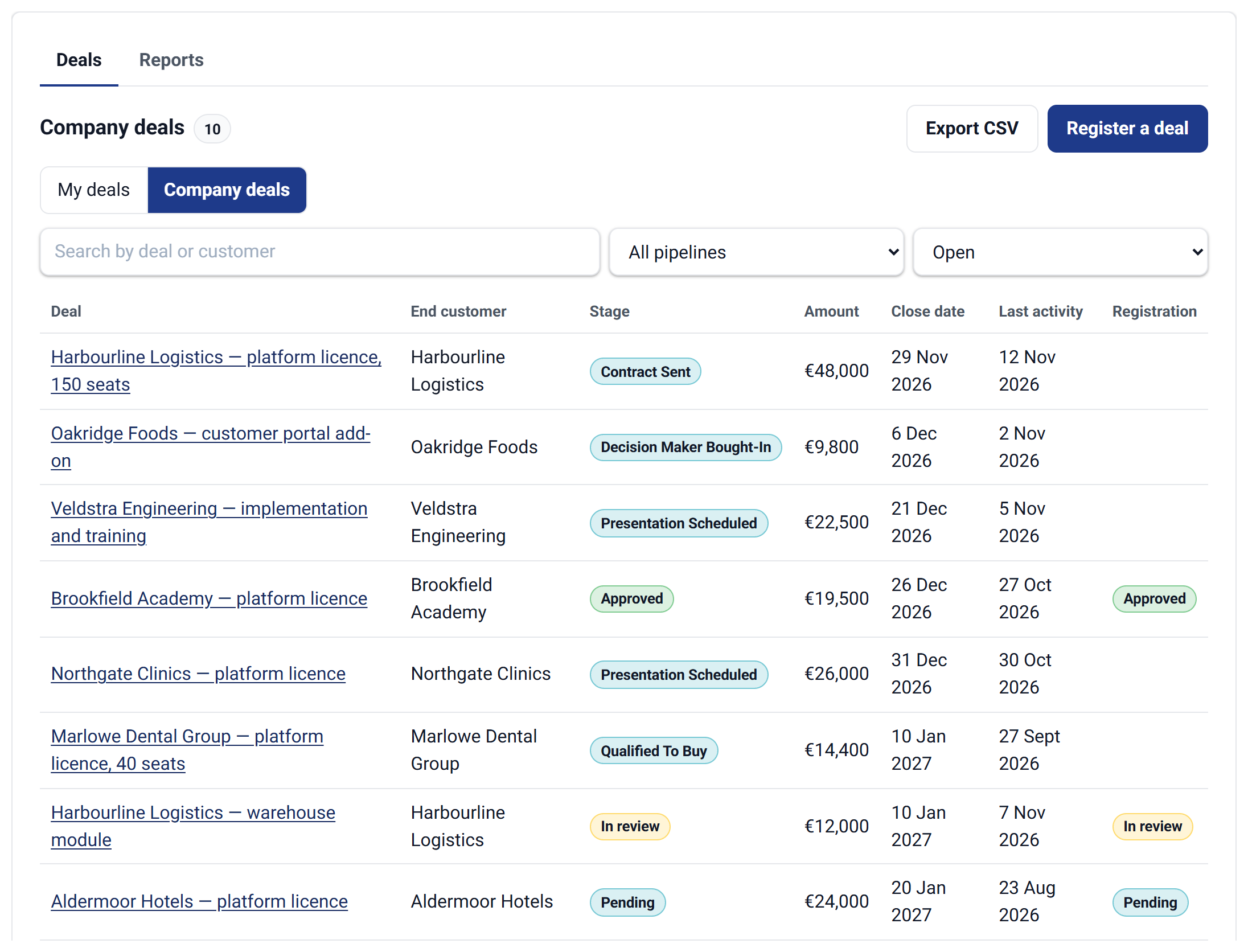
A partner admin's company deals: their colleagues' deals and their registrations in one list, each registration showing where it stands.
One deal#
The deal page shows the facts you allow: amount, close date, next step, forecast category, the end customer and its website, the partner's commission when you show it, the channel manager when you show it, and the partner reps on the deal.
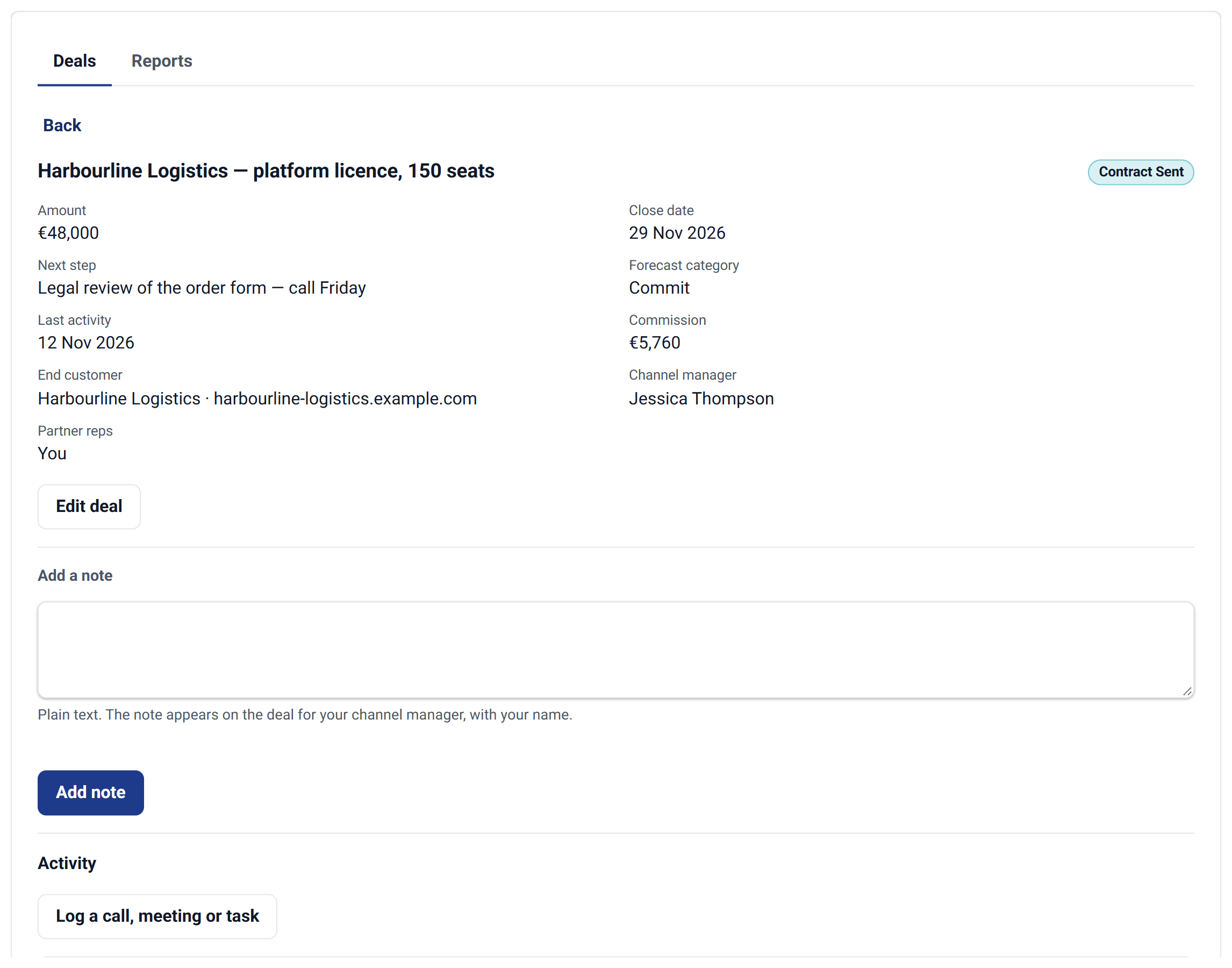
One deal: what the partner may see — including the forecast category and their commission — and the three ways to update it: edit, add a note, log an activity.
Keeping it current: edit in place#
Edit deal turns the editable facts into fields where they stand; everything else stays plain text. Dropdowns such as the forecast category offer your portal's own options (on our demo portal: Not forecasted, Pipeline, Best case, Commit, Closed won). The stage can be changed only between the stages you allow, and a registration not yet approved cannot be moved at all.
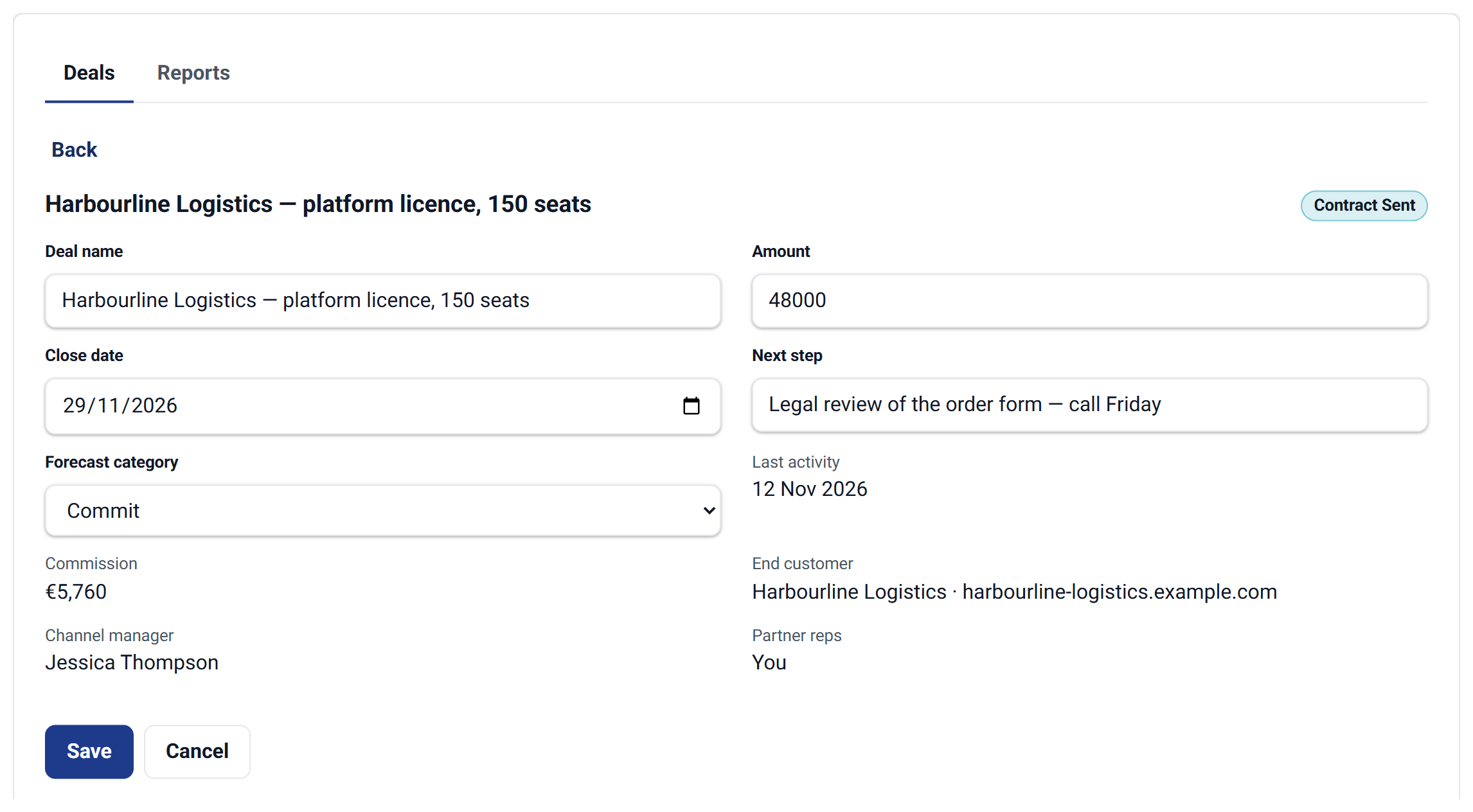
Edit in place: only the fields you allowed become editable; Save writes them to the HubSpot deal with a note naming the partner.
Every rule is checked on our server, not in the browser: a field you did not allow, a stage move you did not allow or a dropdown value your portal does not have is refused with a clear message. Every accepted change leaves a note on the deal naming the partner, their company and exactly what changed — on top of HubSpot's own property history, which can only name the app.
Products on a deal#
When you switch it on, the deal page gets a Products section: every line item on the deal with quantity, unit price, discount and amount, and a total. A partner adds a product by searching the products you offer — only the ones where you ticked Available to partners in your product library — and sets a quantity and, if you allow it, a discount up to your maximum. The price is always your product's price in the deal's currency; a partner never types one. Lines your own team added are shown but cannot be changed by a partner, and a partner can change or remove only the lines their own company added. Each line is an ordinary HubSpot line item on the deal, and every change leaves a note naming the partner. HubSpot does not update the deal amount from lines added this way; the amount stays the field the partner or your team maintains.
Logging calls, meetings and tasks#
Under Activity a partner logs a call, a meeting or a task on the deal. Each becomes an ordinary HubSpot call, meeting or task on the deal's timeline, with the partner named in it. A partner marks their own tasks done.
- Calls and tasks have no owner, so a reseller's to-dos stay out of your team's task queues and out of "activities by owner".
- A meeting is owned by the deal's owner, because HubSpot requires an owner for a meeting. Logging a meeting sends no invitation.
- Calls, meetings and notes are attached to the deal only; a task is also attached to the partner's contact record.
Below the form, the Activity list shows what the partner logged from this page — calls, meetings, tasks, notes and their changes, newest first; in company scope, what anyone at their company logged. Your team's own notes, calls, emails and tasks on the same deal never appear there. Changes made before 12 November 2026 are not listed.
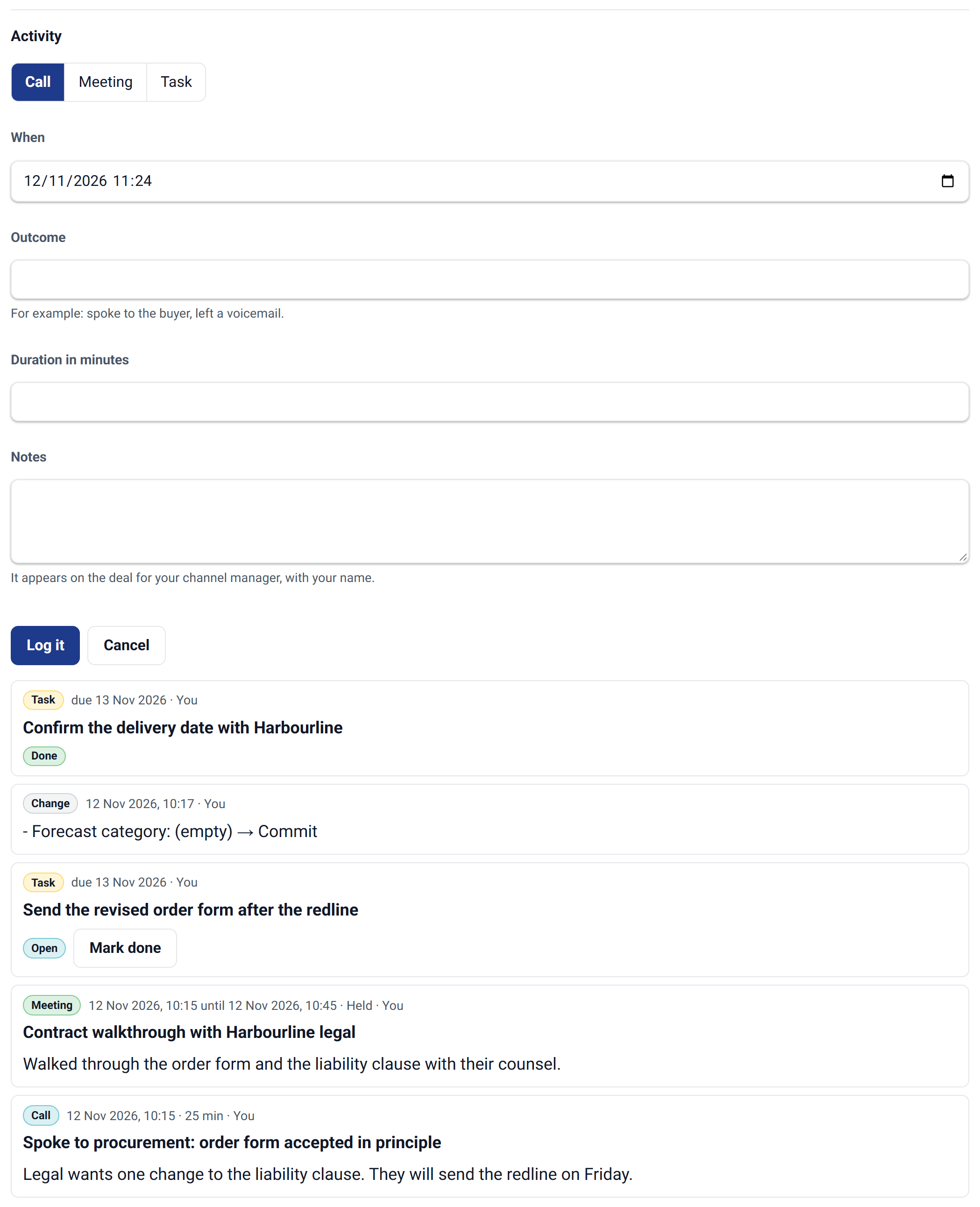
Logging an activity: pick call, meeting or task, fill in a few fields, and it joins the list — the partner's own record of what they did on this deal.
You can switch activity logging off on the settings page; the list then stays, read only.
Documents and questions#
On the same page a partner shares documents on the deal (through our File Manager app) and asks questions — opening a new one from the deal, reading the conversation and replying (through our Tickets app). Your team answers in HubSpot as a ticket linked to the deal. The deal's published quotes are listed read only.
Registering a deal#
Register a deal takes three steps: the end customer, the deal basics (name, amount, expected close date) and a confirmation. The customer is looked up by website first, so a registration attaches to the company you already have instead of creating a duplicate; a new customer is created with a name and domain.
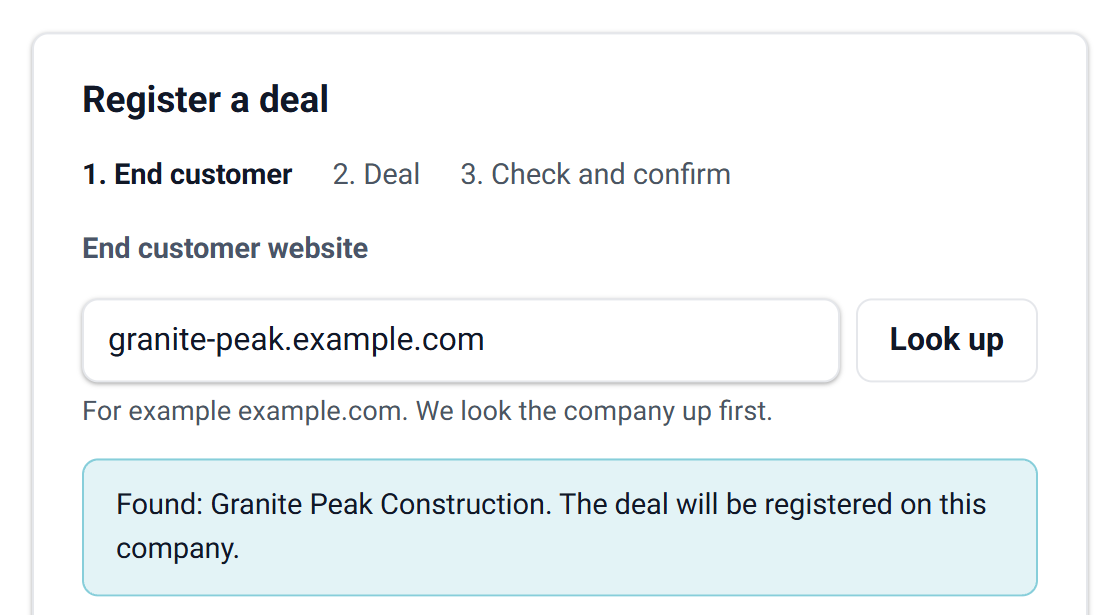
The end customer is found by website first — the registration lands on the company record you already have.
If someone else already has an open deal for the same customer within the conflict window, the registration still goes in, marked for your channel manager to decide. The partner learns only that another registration exists and since when — never who.
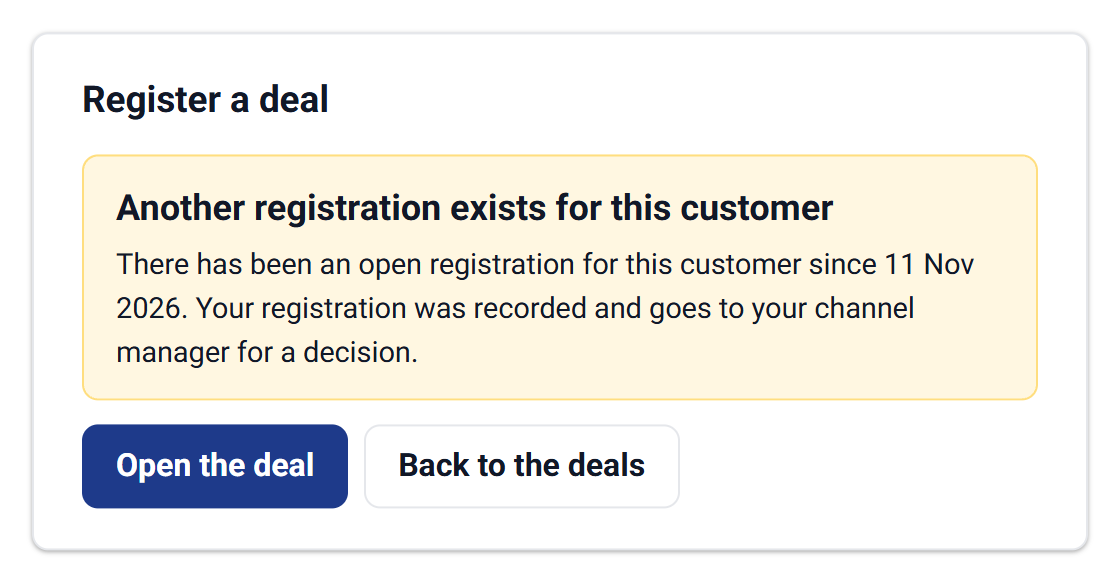
A conflict names nobody: the partner learns that and since when, and your channel manager decides in HubSpot.
Reports#
The Reports tab shows the partner's numbers — or their company's, in company scope — computed from their deals at the moment they ask:
- Tiles: open deals, open amount, won this quarter (compared with last quarter), won this year (compared with the same date last year), win rate over 12 months, and — when every open deal's stage has a probability — the weighted pipeline (open amount × stage probability). A comparison appears only when the deals reach back far enough to make it.
- The deals behind every number. Hover over a tile on a computer, or tap or click it, and the deals that make up the number open beneath it, each a link to the deal. A click keeps the list open; Escape or a click elsewhere closes it. When one of the deal list's filters shows exactly those deals, Show all in the deal list opens it.
- Forecast: the open amount per forecast category, in your portal's own categories, each opening its deals.
- Open pipeline by stage as one bar and won per month over twelve months as one line. Click a stage or a month to see its deals. Each chart is also stated in a sentence and has a Show as table option.
- Registrations by status, each opening its registrations.
- For partner admins in company scope, a team table: each colleague's open deals, deals won this year and last activity.
- Two action lists: deals without activity for 30 days ("46 days quiet") and registrations that expire within 14 days ("expires in 7 days").
- Commission, when you show it and the partner company has a rate.
- Export CSV for partner admins, with column headers in the page's language.
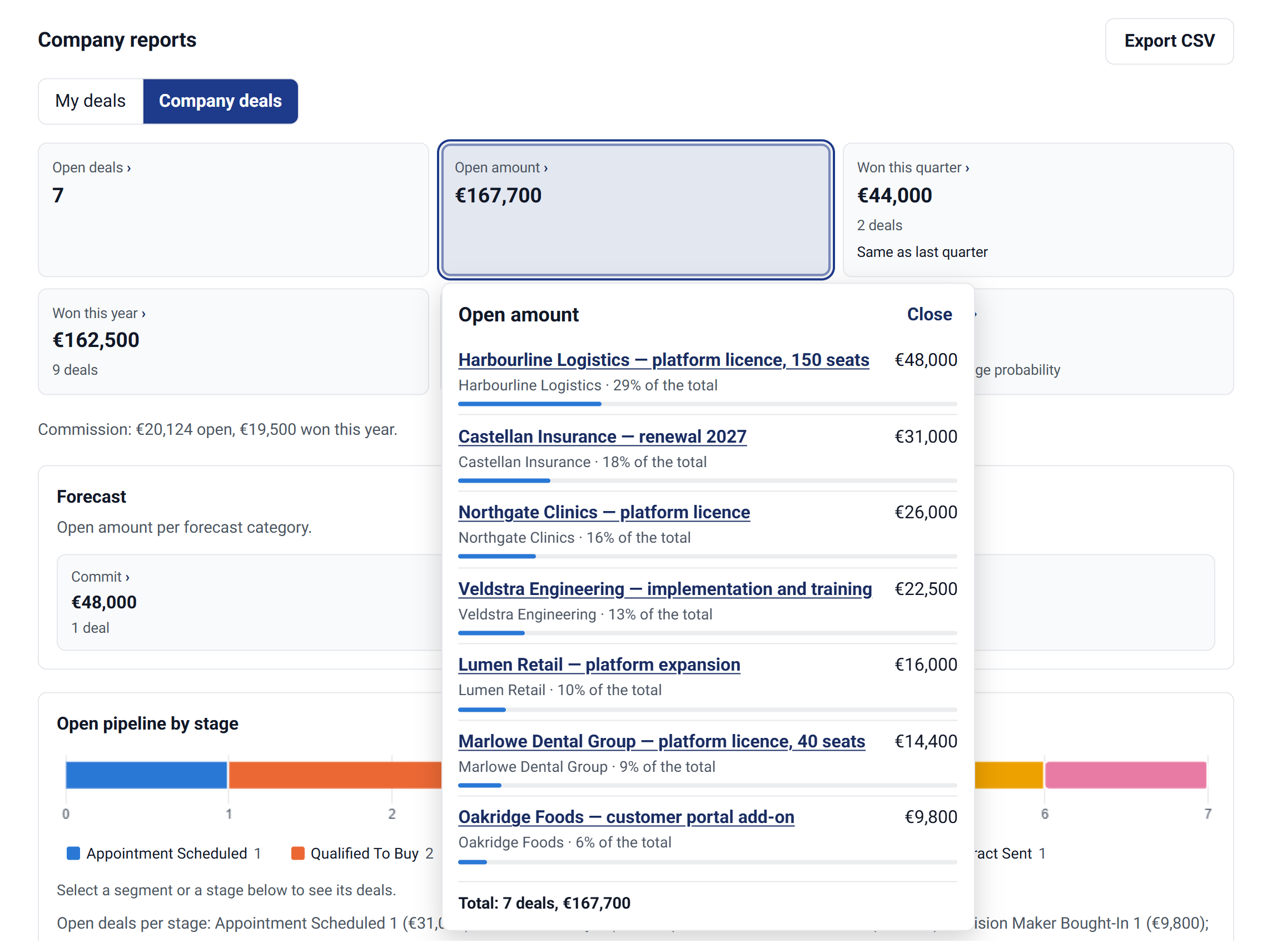
Every number opens the deals behind it: here the open amount, with each deal's share — so a partner admin sees at once where their pipeline sits.
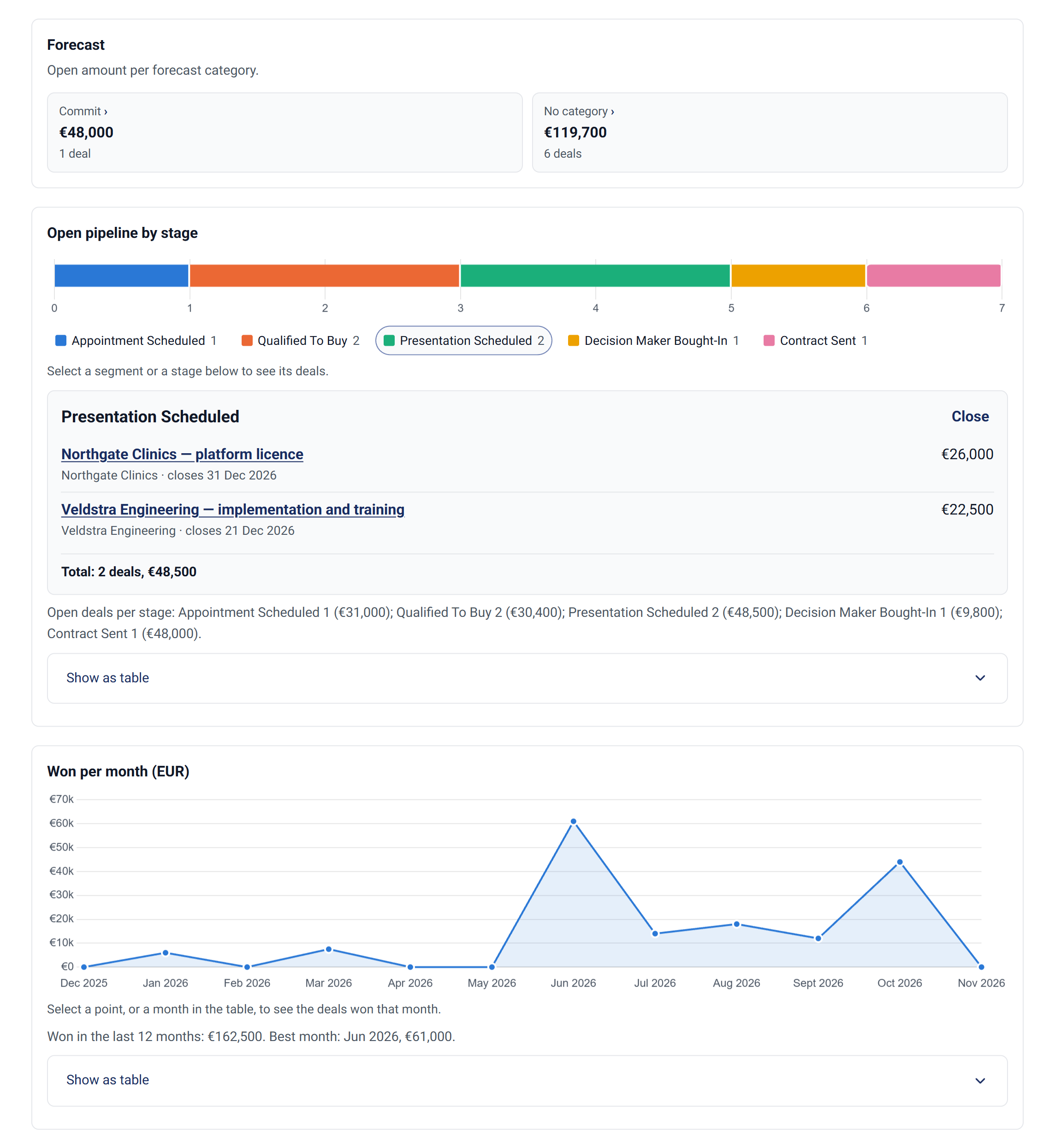
The forecast in your own categories, and the charts as ways in: a click on a stage (or a month) lists exactly those deals.
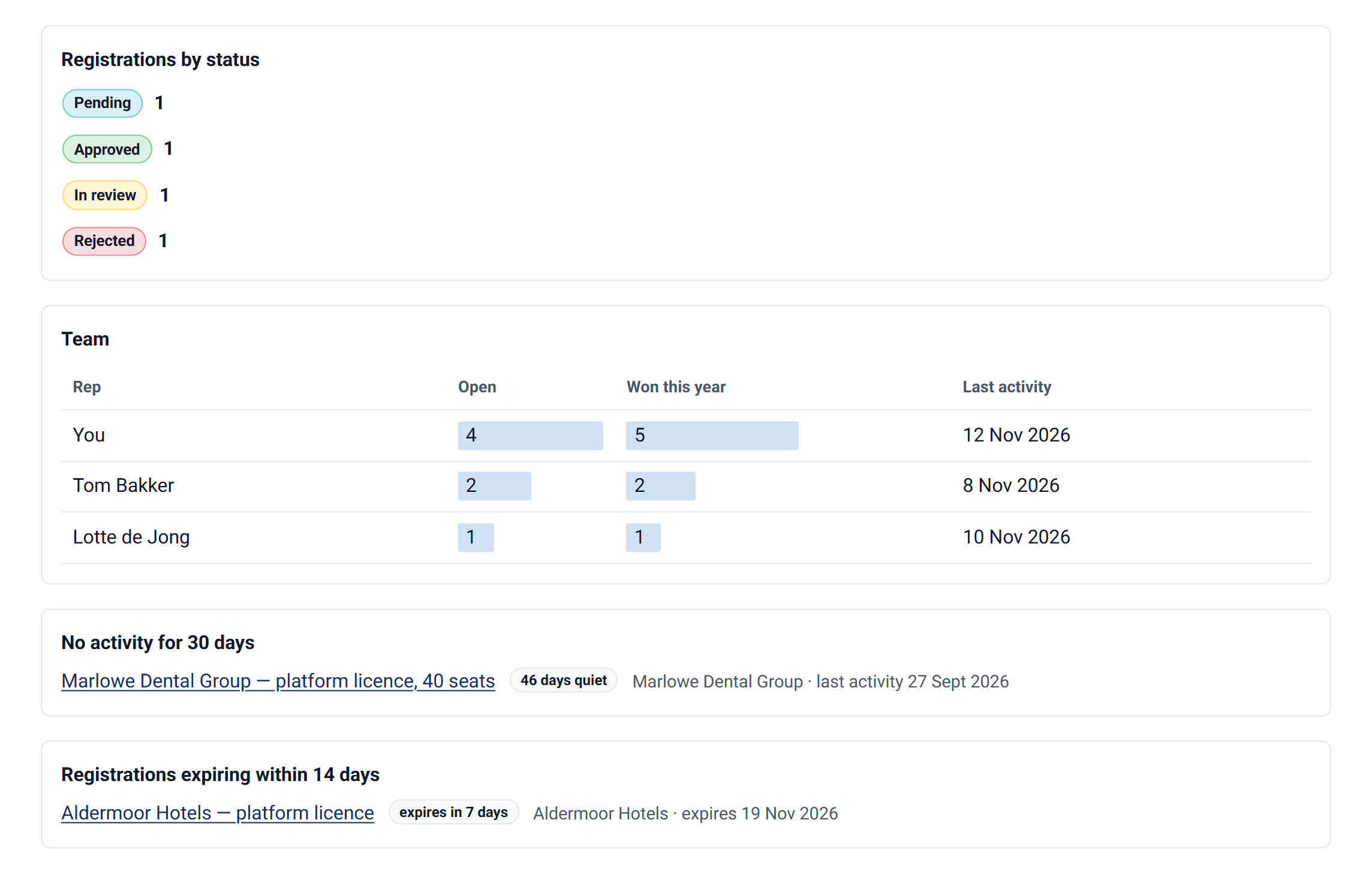
For a partner admin: their team, the deal that has gone quiet and the registration about to lapse — the week's to-do list.
Links that can be shared#
Inside the Members Portal every view has its own address: a deal (…/partners#partner/deal/<id>), Reports (#partner/reports) and the registration form (#partner/register). A partner can bookmark one or send it to a colleague; the browser's Back and Forward work. A link opens a deal only for someone allowed to see it — anyone else gets "not available". The Partner module on its own page keeps no addresses.
The screenshots on this page come from our demo portal, signed in as the admin of a fictional reseller; every company and person in them is made up. That portal uses a registrations pipeline, which is why its registrations show stages such as Pending and Approved.
What your team gets in HubSpot#
Nothing new to learn: partner deals are HubSpot deals.
| Where | What |
|---|---|
| Deals | The end customer stays the deal's primary company. The partner company is attached with the association label Partner company, the partner's contact with Partner rep. Filter, report and automate on them like any association |
| Timeline | The partner's calls, meetings and tasks as ordinary HubSpot activities, and a note — named Partner update by … — for every edit, note and registration |
| Forecast | A partner who may edit the forecast category feeds your HubSpot forecast directly |
| Registrations | Deals owned by the user you choose in settings, marked by Partner registration status — see the next section |
| Properties | The partner's last activity on each deal, the registration's state, date, expiry and registering contact — for your reports, views and workflows |
| Company record | Whether a company is a partner (Partner type: reseller, agent or referral), its commission rate, and its Partner portal scope — personal or company for that one partner, overriding your default |
| Contact record | Partner role: admin unlocks the team table and the export; a partner contact without a role is a rep |
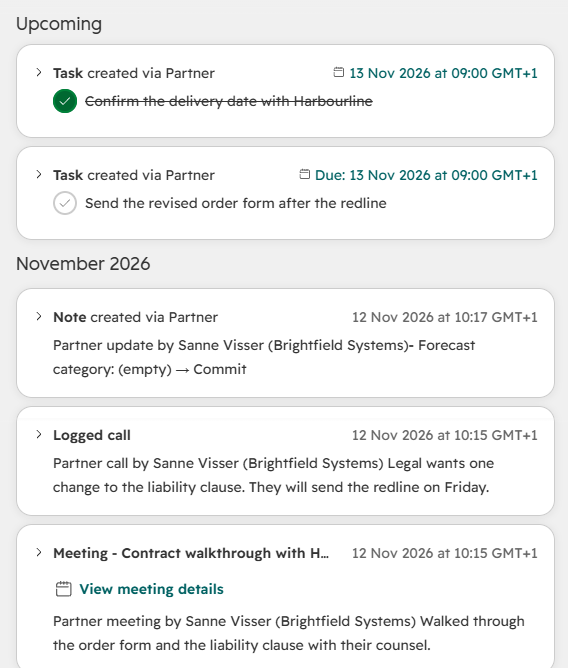
The same deal in HubSpot: the partner's tasks, call, meeting and forecast change sit on the timeline your channel manager already reads, each naming the partner and their company.
Notifications: your workflows, our examples#
Partner writes deal properties and labels; your HubSpot workflows tell people. We hand you three example workflows with ready-made emails, which we set up on your portal with you:
- Registration received — tells the deal owner (your channel manager) and gives them a task to review it, with a separate path for a conflict.
- Registration approved or rejected — emails the partner rep.
- Deal stage changed by your team — emails the partner rep; changes the partner made themselves do not trigger it.
The emails go only to contacts labelled Partner rep on the deal — never to the end customer. They are examples to adapt: wording, timing and who is told are yours.
How registration and protection work#
A registration is a claim: "this customer is ours to work". Partner records the claim, protects it against a second claim, and leaves the decision to your channel manager.
Out of the box — approved on the deal. A registration becomes a deal in the first stage of your default sales pipeline (or a pipeline and stage you choose), owned by the user you pick in settings, with Partner registration status set to Pending review. To approve it, your channel manager sets that property to Approved; to reject it, Rejected. The deal stays in its stage until your team moves it — Partner never moves a deal on your behalf, so your own stage workflows only run when you act. Tip: add Partner registration status to the deal record's sidebar.
Or — a registrations pipeline. One button on the settings page creates Partner registrations with five stages: Pending, Approved, Conflict, Rejected and Expired. Registrations then land in Pending (or Conflict), and approving is a stage move. Partner brings Partner registration status in line with the stage the next time the deal is read for a partner; example workflow 2 sets it straight away. The app never creates this pipeline by itself. After approving, move the deal into your sales pipeline — by hand or with a workflow: an approved registration counts in the partner's open deals, charts and forecast from the moment it sits in a sales pipeline; until then the partner sees it as Approved in their list and under Registrations by status.
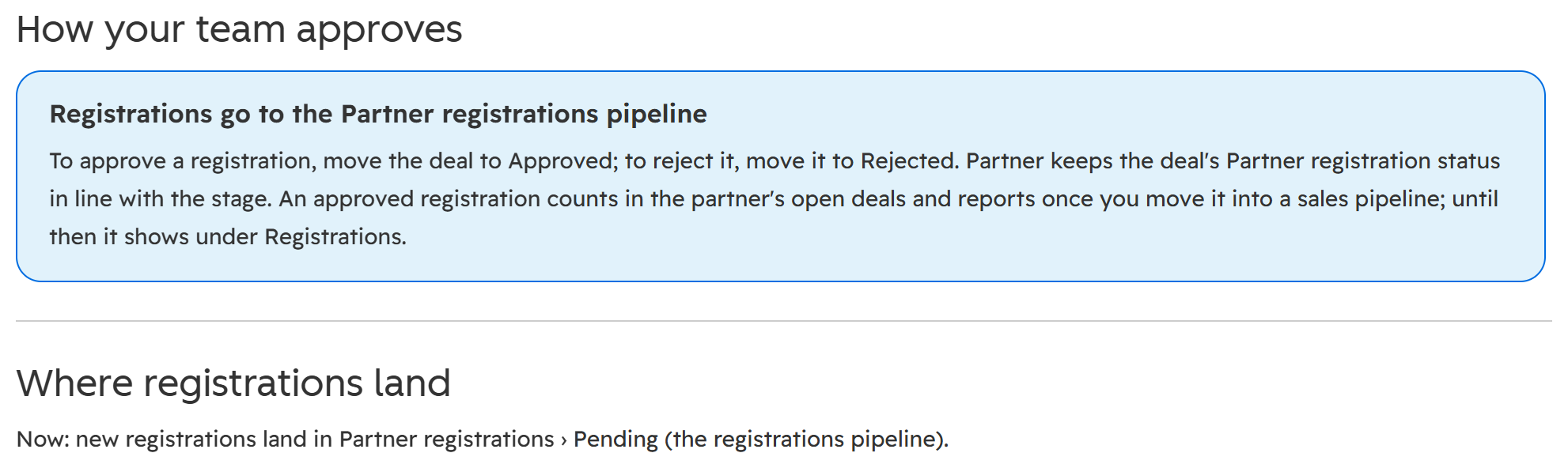
The settings page says, for your portal, how your team approves and where registrations land — here a portal that chose the registrations pipeline.
In both modes:
- Until it is approved a registration does not count in the partner's open deals, won amounts or charts — only under Registrations by status — and the partner cannot move it.
- The conflict rule. If another open deal for the same end customer was registered or created within the conflict window (90 days unless you change it), the new registration goes in marked Conflict for your channel manager. The partner who registered it sees In review — on the list, the deal page and in their export — and is told only that another registration exists and since when. A registration you rejected no longer blocks anyone.
- Expiry. A pending registration expires after a number of days you set (90 by default). The partner sees it as expired from that date, and the expiring within 14 days list warns them before. Partner does not move an expired registration anywhere; reopening or closing it stays with your channel manager.
The settings page#
In HubSpot, under the app's Settings. A status panel first — licence, the number of partner companies and partner contacts, the two association labels, and how registrations are approved on your portal — then the tabs below. Nothing is typed as an id: pipelines, stages, properties and owners are chosen from lists the app reads from your portal. A saved change reaches partners on their next page load.
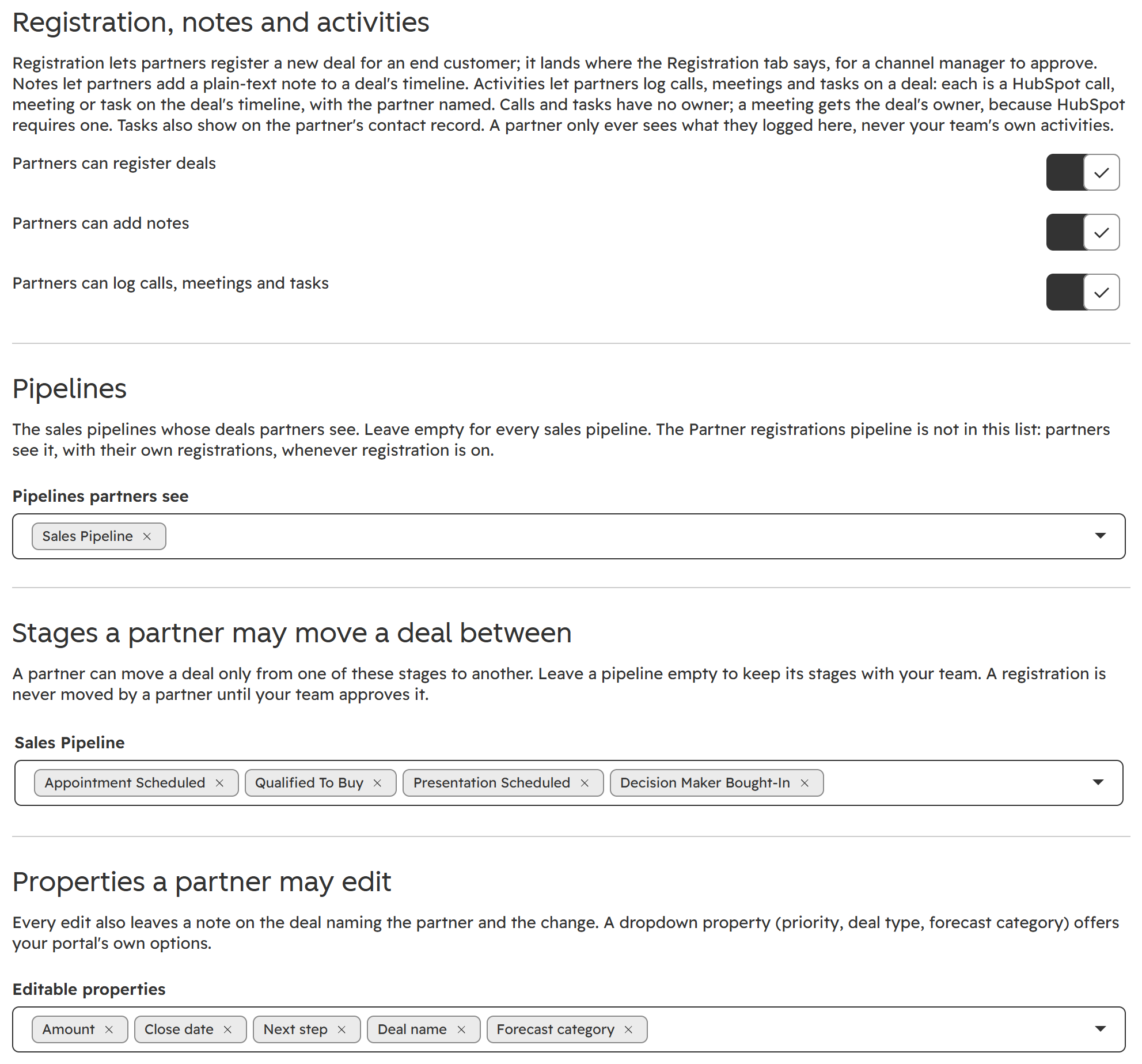
What a partner may do, decided in one place: switches for registration, notes and activities, then the pipelines, the stage moves and the fields — each chosen from your portal's own lists.
| Tab | You decide |
|---|---|
| Permissions | Whether partners may register deals, add notes and log calls, meetings and tasks; which sales pipelines partners see; per pipeline, between which stages a partner may move a deal; which properties a partner may edit, including the forecast category, priority and deal type with your portal's own options |
| Scope and visibility | Whether partners see their own deals or their company's by default (a company's own Partner portal scope wins; the admin role alone gives no company switch); whether to show the channel manager's name, commission (deal amount × the partner company's rate) and colleagues' names in the team table |
| Registration | How your team approves, and the button to create a registrations pipeline if you want one; where registrations land (a pipeline, then a stage); who owns registered deals; the conflict window and the expiry, in days |
| Reporting and labels | When a deal counts as inactive and a registration as expiring; your own names for the tab and for Register a deal |
The data model#
Created by the app at install and found again by name on every reinstall:
| Thing | Where it lives | Values |
|---|---|---|
| Partner company | Company property Partner type (partner_type) | none, reseller, agent, referral — anything but none makes the company a partner |
| Commission | Company property Partner commission rate (%) (partner_commission_rate) | a number |
| Scope override | Company property Partner portal scope (partner_portal_scope) | default, personal, company |
| Partner admin | Contact property Partner role (partner_role) | rep, admin |
| Partner ↔ deal | Association labels Partner company (company ↔ deal) and Partner rep (contact ↔ deal) | — |
| Registration | Deal properties Partner registration status (a dropdown you can edit), registered at, registration expires, registered by (contact id) | None, Pending review, Approved, Rejected, Conflict: needs a decision, Expired |
| Activity | Deal property Partner last activity (partner_last_activity_at) | a date and time |
| Customer contact | Deal property Partner-named customer contact (contact id) | the contact a partner named when registering |
| Activity record | A hidden deal property holding a signed list of what partners logged on the deal | written and read by the app only |
| Products a partner may add | Product property Available to partners (partner_available) | a checkbox; only ticked products are offered |
| Who added a line | Line item property Added by partner (contact id) (partner_added_by) | the partner contact, for people reading the record |
| Line ownership | A hidden line item property holding a signature | written and read by the app only; it decides which partner company may change or remove the line |
| Sign-in key | Contact property Member key (Partner), group worksby.design, on each partner contact | written by the app on a partner's first visit |
All other partner properties sit in one property group, Partner portal, on companies, contacts, deals, products and line items. HubSpot shows a product property on line items as well, so Available to partners also appears there. The app creates no pipeline; the Partner registrations pipeline exists only if you create it on the settings page. The two labels are found by their names, Partner company and Partner rep: renaming either in HubSpot disconnects the app from it until the name is restored.
Who counts as a partner: a contact whose primary company has a partner type, and who can sign in to the partner page.
Security and privacy#
For your IT reviewer; we walk through the detail on request.
- Identity. A partner signs in with your website's HubSpot membership. HubSpot then puts that partner's own signed, expiring key into the page; our server checks the signature and the expiry on every visit. The key is kept on the partner's contact record, where your HubSpot users who can open that contact can see it. Nothing the browser claims about who it is counts.
- Isolation. What a partner may see is worked out on our server, on every request, from the labels on the deal — never from an id the browser sends. A link to someone else's deal answers "not available". A partner never learns of another partner company, in any list, count, chart, export or conflict message.
- Their activity, not yours. The Activity list shows only what was logged through the partner page, checked against a signed record the app keeps on the deal; your team's own notes, calls, emails and tasks are never read for a partner.
- Narrow, audited writes. Only the properties and stage moves you allow, and for a dropdown only a value your portal has; everything else is refused on the server. Every change leaves a note naming the partner. An exported CSV cell that could run as a spreadsheet formula is written as plain text.
- Your data stays in HubSpot. The app keeps no database of your deals, contacts or companies. Our server reads from HubSpot when a partner asks and holds answers for at most five minutes, in memory. What it stores per portal is the connection to HubSpot and your settings. Its logs carry record ids, never names or email addresses.
- Settings can only be changed from the app's settings page inside HubSpot, by a signed request HubSpot makes on behalf of a signed-in user.
Permissions it asks for at install, in plain words:
| Permission | Why |
|---|---|
| Contacts, companies and deals — read and write | Read a partner's deals and their customers; write allowed edits, notes, calls, meetings and tasks; create registrations and their end-customer companies |
| Contact, company and deal properties — read and write | Create the partner properties and labels at install, read your dropdown options, and create the registrations pipeline if you ask for one |
| Owners — read | Show the channel manager's name, and let you choose who owns registered deals |
| Quotes — read | List a deal's published quotes |
| Products — read; line items — read and write; line item settings and e-commerce | Offer your partner-available products, add, change and remove a partner's lines on their deals, and create the app's own product and line item properties at install |
| Contact lists — read, and membership access groups — write | Add a person to the membership access group of your partner page, so they can sign in to it. On a customer's portal no screen uses this today |
| Content | Place the Partner module on your website |
| Basic account information | Standard for every HubSpot app |
What it does not do#
- Send email. It writes properties; your HubSpot workflows notify people (see the examples).
- Book meetings. A meeting is logged after the fact; no invitation is sent.
- Let partners create quotes. Partners can put products on a deal, but quotes are read only; a partner asks for one through a question.
- Pay commission. It shows a figure from the company's rate; payouts stay in your finance process.
- Manage partner users. Partners are HubSpot contacts; who may sign in is your membership access group.
- Move deals for you. Approval, rejection, expiry and every stage change your team makes stay in HubSpot, in your hands.
Requirements and getting it#
Your portal needs:
- HubSpot memberships on the partner page, on a domain or subdomain connected to HubSpot (your main website does not have to be on HubSpot) — memberships do not work on a
*.hs-sites.comaddress. - Pages built with our Fasterrr theme. This is a hard requirement: the partner page runs only on a Fasterrr page. If your site uses another theme, the partner page needs its own Fasterrr page.
- Our Members Portal app with the Partner tab switched on, or the Partner module on its own page.
- For documents and questions on a deal: our File Manager and Tickets apps. Without them those two sections say which app they need; everything else works.
Speed, measured on 12 November 2026 against our demo portal with a test partner holding 500 and 2,000 deals (the time for the page's data to arrive): a partner's first load took about 0.7–1.1 s at 500 deals and 2.4–3.0 s at 2,000; loads within the next five minutes, under 0.2 s.
Getting it. Partner is shared by invitation only, and there is nothing to download: we approve your HubSpot account for the app and send you the install link. Each portal needs a licence. To see it working, or to plan a pilot, contact worksby.design.
Setting it up takes an afternoon with us: install the app (it creates its properties and labels), choose your pipelines, stages, editable fields and registration mode on the settings page, mark your partner companies and their admins in HubSpot, add the partner page to your site with membership access, switch on the notification workflows you want, and invite your first partners.
How far it has been proven#
Everything below was done on our demo portal, with every result read back from HubSpot.
- 11 November 2026 — the rules, scripted. 46 checks: who sees which deals in both scopes and with a company override; the report numbers against a hand count; an allowed edit with its note; a refused edit and a refused stage move; registration from website lookup to conflict, without naming the other partner.
- 11 November — in a browser, as a partner admin. The deal list, a deal with documents and questions, a registration ending in conflict (owned by the user chosen in settings) and the reports — also at phone width (360 px) in light and dark mode.
- 12 November — activity. A call, a meeting and two tasks logged from a deal and one task marked done, each found on the deal's timeline in HubSpot; switching activity logging off and on again; a forecast category edited and saved with its note; the three example workflows switched on and their emails checked in HubSpot's preview.
- 12 November — the new screens. Opening on My deals and remembering Company deals; edit in place (opened, then cancelled); deal links and the Back button; every Reports drill-down — tiles by hover, click and keyboard, a stage, a month, a registration status, Show all in the deal list; Reports and edit in place at 360 px in light and dark mode; and the speed measurements above.
Not done yet: use with a real partner or on a customer's portal; the out-of-the-box mode without a registrations pipeline on a live portal (it is built and tested, but our demo portal uses the pipeline); the Partner module on its own page; a Dutch partner page; an email actually sent by the example workflows. A pilot with one partner company of yours covers the first two.
What comes next#
- A pilot with a first partner company — on your portal, with your pipelines and your partners.
Try it#
See a partner's day on our demo — a reseller with three people, a year of deals, registrations in every state — or plan a pilot with one of your own partners. Contact worksby.design →
HubSpot is a trademark of HubSpot, Inc. worksby.design is an independent publisher, not affiliated with HubSpot.